

Windows-11 settings offer a variety of options to fine-tune the operating system for optimal performance and privacy. Several features, when correctly configured, can help improve system efficiency, reduce distractions, and protect personal data. Here are key tips that should be either activated or deactivated to make Windows-11 run smoothly and securely.
Remove recommendations and account notifications from the Start menu
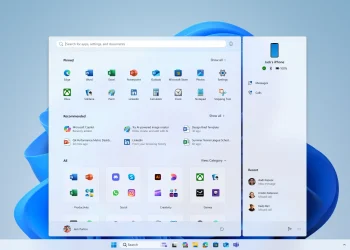
By default, Windows-11 displays app recommendations, recently used files, and account-related notifications in the Start menu. These can create distractions and require additional usage data.
To deactivate these, open Settings with Windows key + I, navigate to Personalization, and select Start. Then, disable options like “Show recently added apps,” “Show most used apps,” and all options in the “Recommended” area. This helps to streamline your Start menu and eliminate unnecessary data collection.
Control system-wide notifications and app pop-ups
Notifications are among the top distractions for many users. To manage them, open Settings, go to System, then Notifications. First, disable the global “Notifications” option.
For individual apps, you can use the “Do Not Disturb” option to limit pop-ups while allowing notifications from specific apps. Additionally, scroll down to “Additional settings” and disable “Receive tips and suggestions when using Windows.” This will remove setup pop-ups and advertising notices.
Protect your lock screen from data leaks
Lock screen notifications can sometimes display content in plain text. To prevent this, go to Settings > System > Notifications and disable “Show notifications on the lock screen.” This keeps sensitive content hidden when the device is locked.
Disable advertising ID, language list, and app tracking
Windows-11 collects data for personalized advertising and app statistics. To disable this, open Settings, go to Privacy and Security > General, and turn off options like “Let apps show me personalized ads by using my advertising ID” and “Let websites show me locally relevant content by accessing my language list.”
By turning off these options, Windows-11 will no longer create usage profiles, ensuring your data stays private.
Keep Inking & typing personalization local
The “Inking & typing personalization” feature analyzes your keyboard and pen inputs. To disable this feature, go to Settings > Privacy and Security > Inking & typing personalization. Turn off “Custom inking and typing dictionary” to prevent input data collection while keeping input fully functional.
Strictly limit diagnostic data and turn off feedback
In Settings > Privacy and Security > Diagnostics & Feedback, choose “Send required diagnostic data” and turn off “Send optional diagnostic data.” Also, set “Feedback frequency” to “Never.”
This helps limit the data sent to Microsoft, ensuring that only the essential information is collected. You can also delete any previously stored diagnostic data.
Disable or restrict location services
Windows-11 tracks location data, which can be disabled for better privacy. Open Settings > Privacy and Security > Location and disable location access or restrict it to specific apps. Weather apps will still work by using a manually set location.
Additionally, check under “Camera,” “Microphone,” and other sensors to revoke unnecessary permissions for apps that do not require them.
Limit background activities of apps
Many apps continue to run in the background, consuming system resources. Open Settings > Apps > Installed apps, select Advanced options for individual apps, and set “Background app permissions” to “Never.”
This will help reduce memory and CPU usage, improving performance. However, this setting may not be available for all apps.
Restrict app installation to verified sources
For security reasons, restrict app installations to the Microsoft Store only. Open Settings > Apps > Advanced app settings, and under “Choose where to get apps from,” select “Microsoft Store only.” This ensures that only verified apps can be installed, providing an additional layer of security.
Consistently clean up autostart
Right-click on the taskbar and open the Task Manager. Go to Startup apps and disable unnecessary programs that slow down the startup process. Manufacturer tools and update utilities often unnecessarily burden system performance.
Permanently display file extensions
To easily recognize dangerous file types, go to File Explorer, click the three dots, and select Options. In the View tab, disable “Hide extensions for known file types.” This helps identify file types instantly and avoid potential security risks.
Restrict delivery optimization for updates
Windows-11 also allows updates to be distributed to other devices. Open Settings > Windows Update > Advanced options > Delivery optimization. Disable “Allow downloads from other devices” or restrict it to the local network to avoid unnecessary bandwidth usage.
Consciously control update restarts
Under “Windows Update” > Advanced options, you can specify whether Windows restarts automatically after updates. Automatic restarts improve security, but they can disrupt work. Set the behavior to suit your preferences.
Optimize power settings
Open the Control Panel, go to System > Power and Battery, and adjust the settings under “Lid, on/off, and standby mode button controls” to match your needs. Here, Windows also shows the power consumption of individual applications. Identify apps that consume excessive power and limit their background activity.
Configure user account control sensibly
Search for “User Account Control” and select Change User Account Control settings. Choose a level that prompts for app installations but not internal Windows actions. This reduces unnecessary queries while maintaining a level of protection.
Disable game background recording
Open Settings > Gaming > Captures and disable background recording. This reduces GPU and CPU load, even when games are not actively being used.
Use night mode permanently
To reduce eye strain, enable “Night light” under Settings > System > Display. Set a schedule for automatic activation or turn it on manually with Windows key + A.
Enable advanced clipboard
Open Settings > System > Clipboard and activate “Clipboard history.” This lets you paste multiple copied items with Windows key + V, improving productivity.
By configuring these key Windows-11 settings, you can significantly enhance your system’s performance, reduce unnecessary distractions, and ensure better privacy. These changes are easy to implement and provide long-term benefits for everyday use.