
Accessing the hidden menus of your PC requires knowing the specific shortcuts assigned by the manufacturer. Finding the correct boot keys for every computer can feel like a guessing game because no universal standard exists across the industry. However, most brands stick to a predictable set of keys that users must tap immediately after pressing the power button. Understanding these shortcuts allows you to change boot drives, run diagnostics, or update firmware without searching for a manual.
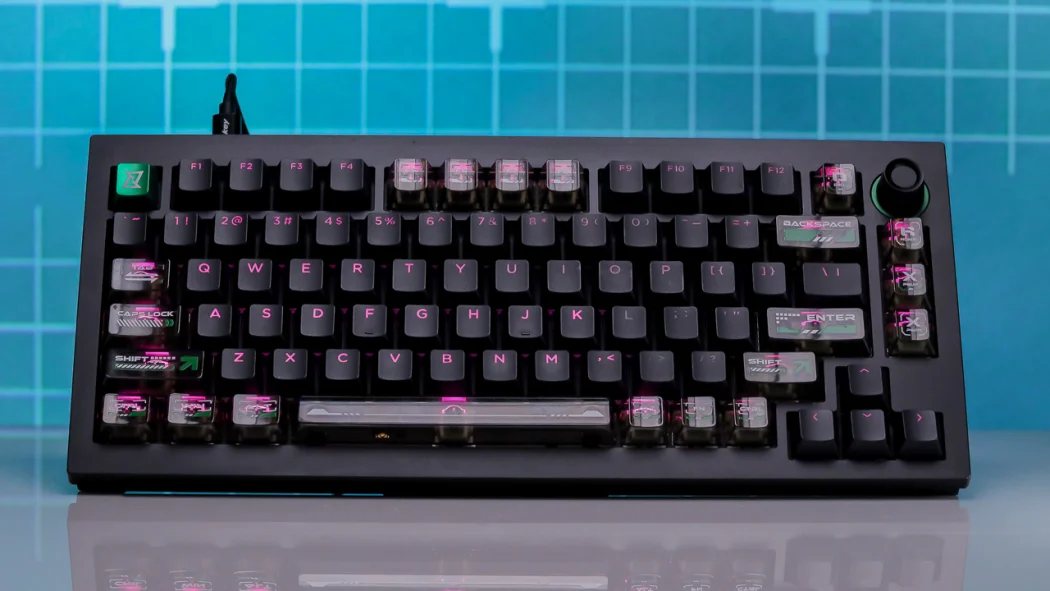
For most desktop computers, the Delete key remains the gold standard for entering the BIOS. Meanwhile, laptop manufacturers often prefer using the Function keys. For instance, if you own a Dell or Lenovo machine, F2 is typically the key to enter settings, while F12 opens the temporary boot menu. Knowing these boot keys for every computer helps you bypass the primary hard drive when you need to install a new operating system from a USB flash drive.
| Brand | BIOS/Setup Key | Boot Menu Key |
| HP | F10 or Esc | F9 |
| Dell | F2 | F12 |
| ASUS | F2 or Delete | F8 or Esc |
| Acer | F2 or Delete | F12 |
| Lenovo | F2 (or Fn + F2) | F12 or Novo Button |
| MSI | Delete | F11 |
| Gigabyte | Delete | F12 |
Interestingly, some laptops require a combination of keys to function correctly. Because modern laptops often prioritize media controls, you might need to hold the Fn key while tapping the designated boot key. This is a common requirement for Lenovo and Microsoft Surface devices. Therefore, when you are testing the boot keys for every computer, always try the combination if the single key fails to register during the initial splash screen.
Furthermore, the timing of your keystrokes is critical. Modern PCs use fast startup technology that only leaves a fraction of a second to catch the boot signal. Consequently, you should start tapping your key the moment you hit the power button. Do not wait for the screen to turn on, as you might miss the window. If you struggle with the timing, you can always use the Windows “Advanced Startup” menu to reboot directly into the UEFI firmware instead of relying on physical boot keys for every computer.
Some specialized devices, such as tablets and 2-in-1s, use volume buttons as their primary shortcuts. On many tablets, holding Volume Up and Power simultaneously will trigger the recovery or boot menu. While these are less common than traditional keyboards, they remain part of the essential boot keys for every computer list for mobile professionals. Always ensure your device is plugged into a power source when performing these actions to avoid a sudden shutdown during firmware access.
In conclusion, while the specific keys vary, the process of accessing your PC’s inner workings is quite consistent. Once you memorize the shortcuts for your specific brand, you gain much more control over your machine’s lifecycle. Whether you are troubleshooting a slow drive or enabling new security features, these boot keys for every computer are the secret codes to your hardware. Mastering them ensures you are never locked out of your own system’s configuration.