
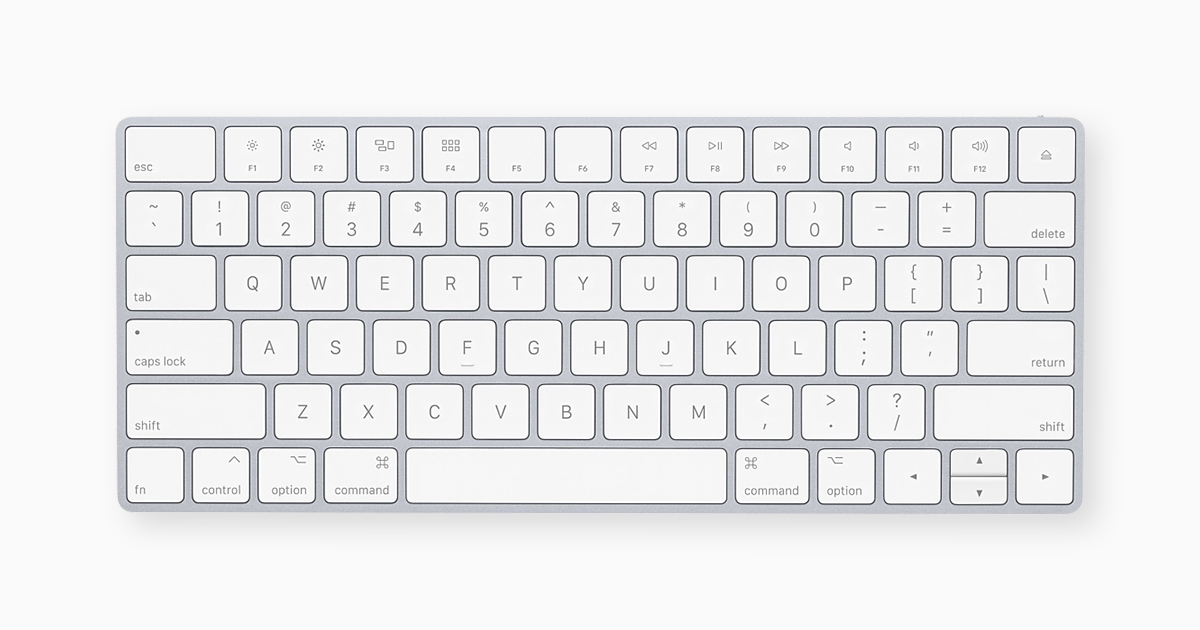
If you’re still clicking through menus or reaching for your trackpad for every little task, you’re working harder than you need to. MacBook keyboard shortcuts can slash your workflow time, reduce distractions, and make your Mac feel like an extension of your brain.
The best part? They’re already built into macOS—no downloads, no setup. Here are the most useful MacBook keyboard shortcuts that actually help in real life.
1. Spotlight Search: ⌘ + Space
Need to open an app, find a file, or even do quick math? Press Command + Space to launch Spotlight. Type “Calculator,” “Photos from June,” or “45*12”—and get instant results without opening a single folder.
2. Switch Apps Instantly: ⌘ + Tab
Hold Command and press Tab to cycle through open apps. Keep holding Command, then tap Tab to move forward or Shift+Tab to go back. Release to switch. It’s faster than hunting through your Dock.
3. Close & Quit Like a Pro
- ⌘ + W: Close the current window (but keep the app running).
- ⌘ + Q: Quit the entire app.
Use these together to clean up your workspace fast—especially after research sessions or multitasking marathons.
4. Take Screenshots in Seconds
Forget fumbling with menus:
- ⌘ + Shift + 3: Capture the whole screen.
- ⌘ + Shift + 4: Drag to select any area.
- ⌘ + Shift + 5: Open the full screenshot toolbar (record screen, set timers, choose save location).
All screenshots save to your desktop by default—but you can change that in Settings.
5. Manage Windows Without Touching the Mouse
- ⌘ + Option + M: Minimize all windows of the current app.
- Control + Down Arrow: Show all open windows (Mission Control).
- Hold Option + Click Green Window Button: Enter true full-screen mode (not just maximized).
6. Undo Mistakes Fast: ⌘ + Z
Deleted the wrong paragraph? Sent an email too soon? Command + Z is your universal undo button. And yes—it works in almost every app, including Messages and Mail.
7. Lock Your Mac Instantly: ⌘ + Control + Q
Step away from your desk? Lock your screen immediately with this shortcut. No more digging through the Apple menu or waiting for sleep mode.
8. Emoji & Symbols On Demand: ⌘ + Control + Space
Need a checkmark (✓), copyright symbol (©), or just a smiley? Press Command + Control + Space to open the emoji picker. You can also search for symbols like arrows, math signs, or currency icons.
9. Quick Look: Spacebar (in Finder)
Select any file in Finder and press Spacebar. Instant preview—no need to open Photoshop for a JPEG or Word for a PDF. Works for videos, audio files, and even ZIP archives.
10. Force Quit Frozen Apps: ⌘ + Option + Esc
When an app freezes, don’t restart your whole Mac. Press Command + Option + Escape to open the Force Quit menu. Select the unresponsive app and click “Force Quit.”
These MacBook keyboard shortcuts aren’t just clever tricks—they’re daily time-savers that add up to hours saved each month. Start with just two or three. Use them until they’re automatic. Then add more.
Soon, you’ll wonder how you ever used a Mac without them.
READ: 7 Hidden Windows 11 Tools You’re Not Using (But Should)