

Windows 11 upgrades can introduce performance, battery, and usability issues, but a few smart adjustments can restore speed, control, and a smoother daily experience.
After months of reminders to upgrade, many users finally moved from Windows 10 to Microsoft’s latest operating system. While Windows 11 delivers a modern interface and new features, the transition has not been seamless for everyone. Reports of reduced battery life, intrusive features, and unnecessary background activity have left some users frustrated.
The good news is that most Windows 11 problems are not permanent. With a few targeted changes, you can significantly improve performance, reduce distractions, and make the system feel more familiar and efficient again.
This guide explains the most common Windows 11 annoyances and how to fix them quickly, without advanced technical knowledge or third-party tools.
Remove Copilot if you do not use it
Microsoft has deeply integrated its AI assistant, Copilot, across Windows 11 and Office apps. While some users find it helpful, others consider it distracting or unnecessary.
If you prefer a cleaner system, you can uninstall Copilot directly. Open the Start menu, search for Copilot, right-click the app, and choose Uninstall. This removes the feature without affecting core system functions.
Uninstall OneDrive to avoid sync issues
OneDrive is enabled by default in Windows 11, automatically syncing files and folders to the cloud. For users who rely on local storage, this can cause syncing errors, unexpected file changes, or privacy concerns.
To remove OneDrive, search for it in the Start menu, right-click, and select Uninstall. Before doing so, ensure all important files are backed up elsewhere, as uninstalling OneDrive stops automatic syncing across devices.
Turn off Start menu recommendations
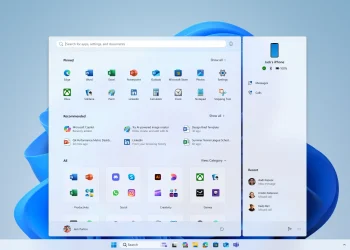
Windows 11 displays recommended apps, tips, and shortcuts in the Start menu. While designed to be helpful, these suggestions often feel intrusive.
To disable them, open Settings, go to Personalization, select Start, and turn off the option that shows recommendations. This results in a cleaner and more focused Start menu.
Customize the Start menu for faster access
The default Start menu comes preloaded with apps you may never use. Removing clutter improves usability and reduces visual noise.
Open the Start menu, right-click any pinned app you do not want, and select Unpin. To add useful apps back, choose All apps, find the program you use frequently, right-click it, and pin it to Start. This creates a layout that reflects your actual workflow.
Clean up the taskbar
The taskbar works best when it contains only your most-used apps. Windows 11 allows easy customization.
From the All apps list in the Start menu, right-click an app, choose More, and select Pin to taskbar. You can remove existing icons by right-clicking them on the taskbar and selecting Unpin.
Disable Edge news feed and widgets
Opening Microsoft Edge often displays a feed filled with news stories, ads, and suggested content. While some users enjoy this, others prefer a distraction-free browser.
Open a new tab in Edge, click the settings gear icon, and turn off both widgets and the feed. Future new tabs will display only a clean background image.
Reduce or stop notifications
Notifications from apps and websites can quickly become overwhelming. Windows 11 allows granular control.
Search for Notifications in Settings. From there, you can disable notifications entirely or manage them app by app, ensuring only essential alerts reach you.
Disable unnecessary startup apps
Windows 11 automatically launches several apps at startup. While security software should remain enabled, other apps like chat tools or cloud services may not be needed immediately.
Open Task Manager, select Startup apps, and review the list. Disable apps with high startup impact that you do not rely on at login. This can noticeably improve boot speed and overall responsiveness.
Final thoughts
Windows 11 issues after upgrading are common, but they are also manageable. By removing unused features, limiting background activity, and customizing the interface, you can turn Windows 11 into a faster, cleaner, and more comfortable operating system that works the way you want.