
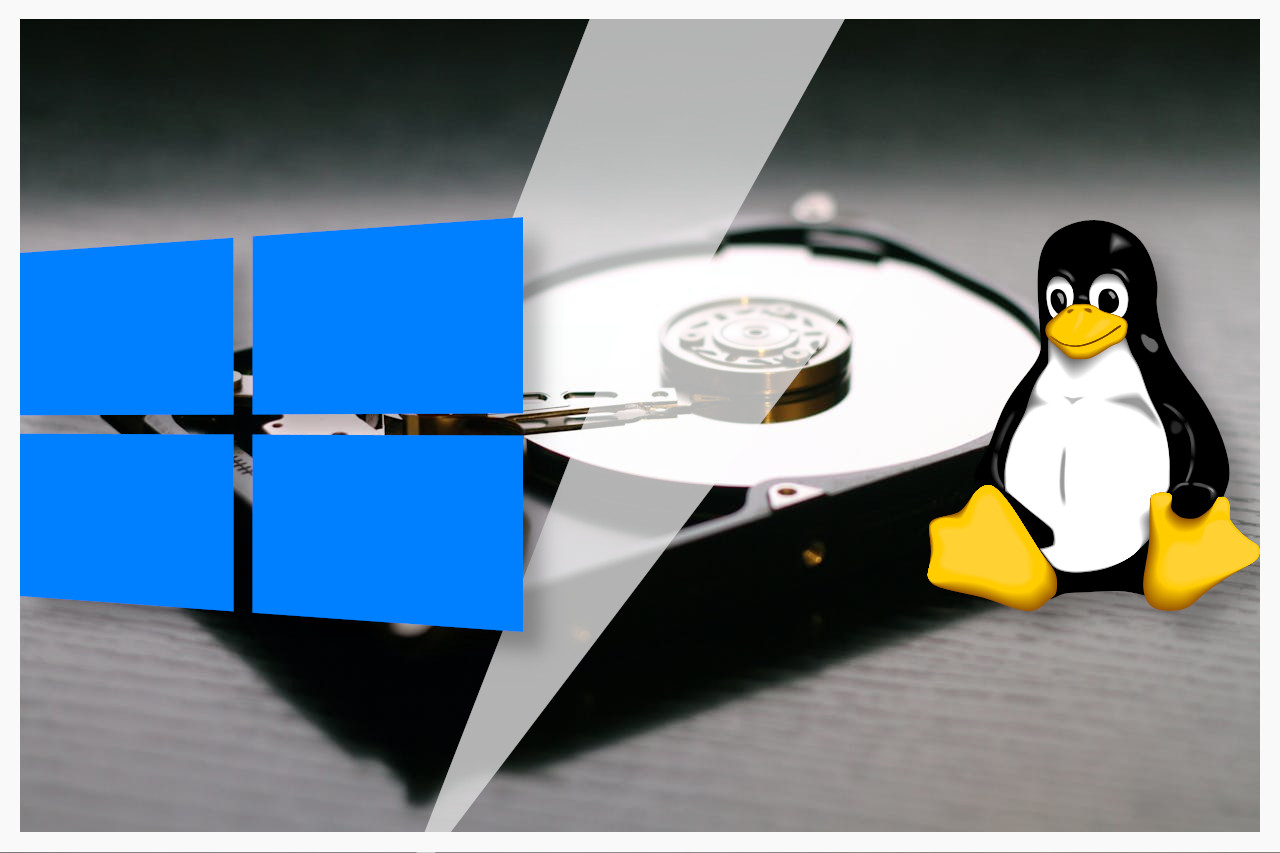
If you’re planning to set up a dual-boot Linux Windows system, you’re entering powerful but delicate territory. While running both operating systems on one machine offers flexibility, it also introduces risks that can lead to data loss, boot failures, or chronic instability. Based on years of personal experience—and helping others recover from costly errors—here are three critical mistakes you must avoid.
1. Installing Both OSes on the Same Drive
Many guides show how to partition a single disk for Windows and Linux, but this setup is far riskier than it appears. Windows and Linux don’t coexist peacefully on shared storage. Microsoft’s BitLocker encryption often interferes with the GRUB bootloader, sometimes rendering Windows unbootable. Worse, routine Windows updates can overwrite GRUB entirely, leaving you locked out of Linux.
To prevent this, install Linux on a separate physical drive—not just a different partition. This keeps the operating systems isolated, reducing conflicts during updates or encryption changes. If your PC supports it, adding a second SSD (like the reliable Samsung 870 EVO) is a smart, affordable investment. If installing a second drive isn’t possible—even with professional help—consider using a virtual machine instead. Forcing a single-drive dual-boot invites problems you’ll regret later.
2. Overwriting the Wrong Disk During Installation
Even with a second drive ready, it’s shockingly easy to wipe your Windows installation by accident. Linux installers won’t warn you if you select a disk containing Windows—they’ll erase it without hesitation. Drives from the same manufacturer or with identical capacities look nearly identical in the installer menu.
Always verify the target disk before proceeding. The safest method? Note the serial number of your Linux drive beforehand. During installation, match that serial number in the disk selection screen. Additionally, back up all critical Windows data before starting. One wrong click can permanently delete everything—no recovery guaranteed.
3. Ignoring the System Time Conflict
After dual-booting, you might notice one OS showing the correct time while the other is hours off. This isn’t a glitch—it’s a design clash. Windows assumes the hardware clock runs in local time, while Linux assumes it uses UTC. Each OS adjusts the displayed time accordingly, causing constant drift.
The fix is simple: align both systems to the same standard. You can either configure Linux to use local time (less recommended) or—better yet—make Windows use UTC. Run this command in an elevated Command Prompt on Windows:Reg add "HKEY_LOCAL_MACHINE\System\CurrentControlSet\Control\TimeZoneInformation" /v RealTimeIsUniversal /d 1 /t REG_QWORD /f
Then reboot. This resolves the time mismatch permanently.
Bonus Tip: Ensure the Boot Menu Appears
Sometimes, after installation, your PC boots straight into Windows or Linux with no choice screen. This usually means GRUB isn’t set as the default bootloader. You can fix this by accessing your BIOS/UEFI settings and prioritizing the Linux drive—or by reconfiguring GRUB from a live USB.
In summary, a successful dual-boot Linux Windows setup hinges on separation, precision, and awareness. Use separate drives, double-check every disk selection, and resolve the time conflict early. By avoiding these three pitfalls, you’ll build a stable, reliable dual-boot system that enhances—not hinders—your workflow.
READ: How to Install Gemini CLI on Ubuntu for Terminal AI Access