
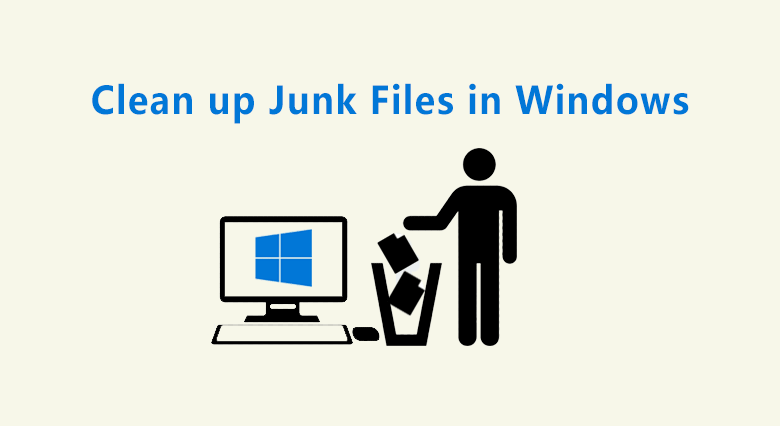
If your computer is running slow or warning about low storage, the issue may be due to accumulated junk files. Windows creates these files during tasks like app installations, web browsing, and updates. Instead of fixing the underlying issue, Microsoft tells users to clean junk files manually. While there are tools like Storage Sense and Disk Cleanup to help, it raises the question: why does Microsoft leave these tasks to users, rather than automating them for a smoother experience?
Storage Sense: Automated Cleanup
Windows has an in-built tool called Storage Sense that’s designed to automatically remove unnecessary files. This feature is a lifesaver for anyone who doesn’t want to worry about junk files piling up. To use it, go to Settings > System > Storage, and enable Storage Sense. It can clean up temporary files, browser cache, and even old system files after updates. However, users still need to configure this option manually, and that can feel like an unnecessary chore on its own.
Disk Cleanup Tool
Another way to clean up unwanted files is through the Disk Cleanup tool. Although it’s been around for years, this tool is still relevant. It scans your computer for files that can be deleted, such as temporary files, system files, and more. To access it, simply type “Disk Cleanup” in the search bar and select the drive you want to clean. While this process can free up some space, it’s another example of the responsibility falling to the user to run maintenance tasks.
Manual File Deletion
In some cases, files from older software installations can accumulate without warning, taking up gigabytes of space. For example, old Adobe installers can often be found hidden deep within the system folders, and removing them may require third-party tools. While this process isn’t overly complicated, it can be frustrating for users who just want their computers to function properly without having to perform constant maintenance.
Bonus Tips for Improving PC Performance
Aside from clearing junk files, there are several other ways to boost your PC’s performance. For instance, disabling unnecessary startup programs can improve boot times. To do this, open Task Manager, click on the Startup tab, and disable programs you don’t need to run at startup. You can also defragment your hard drive (for HDD users) to optimize disk performance. Lastly, regularly updating your system ensures your software runs efficiently and securely.