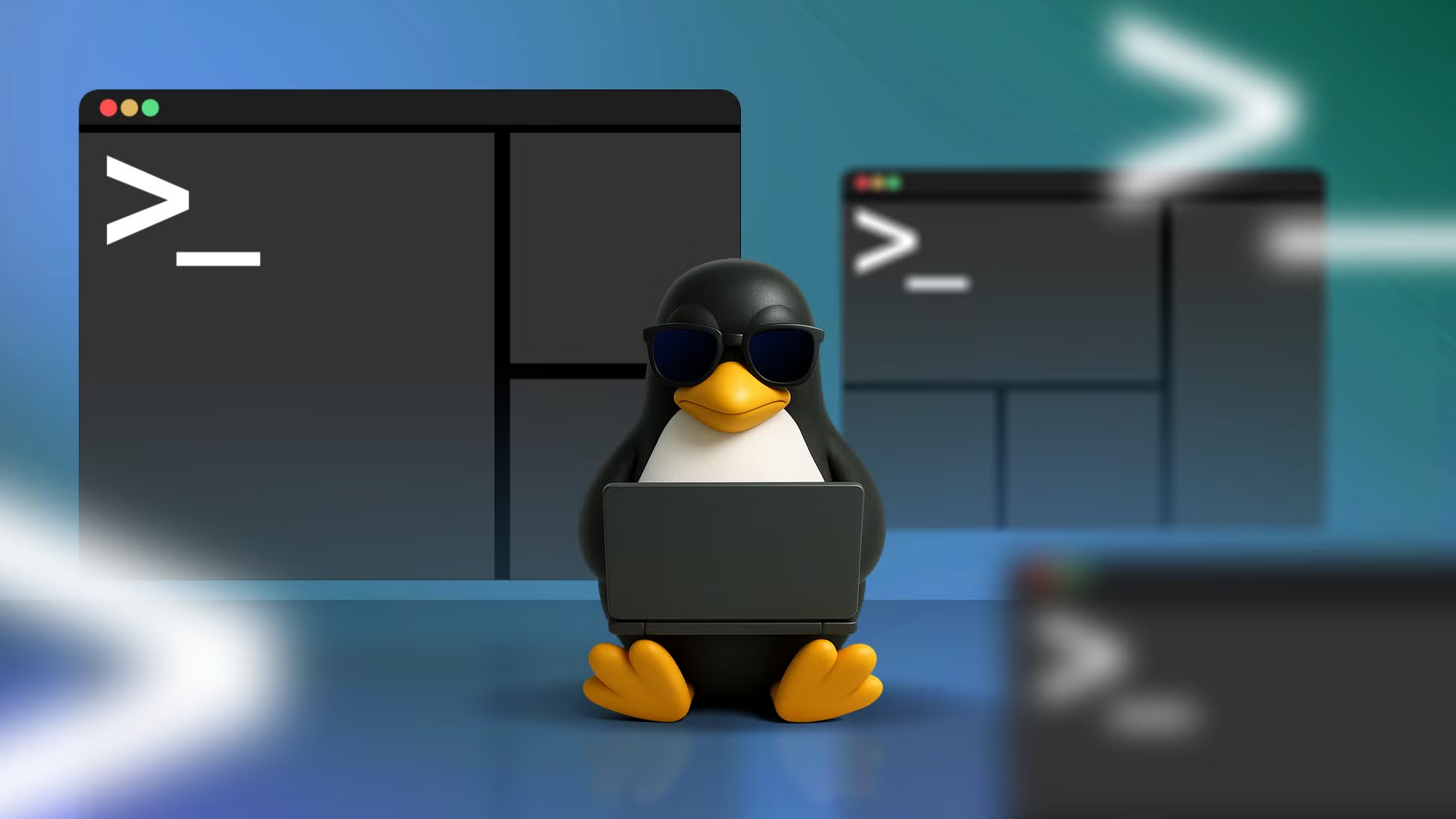

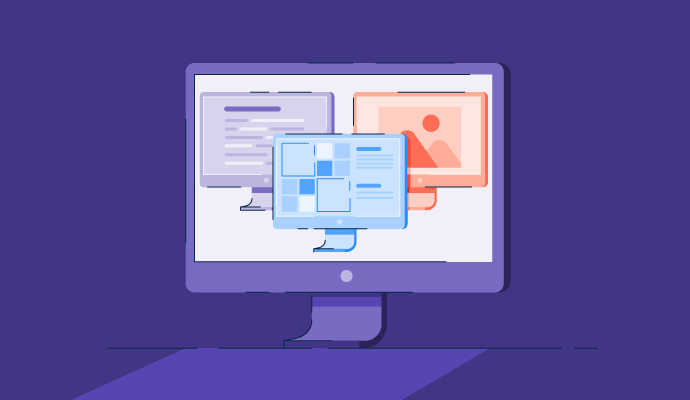
Running more than one operating system on a single computer is possible with a virtual machine (VM). A VM lets you create a virtualized environment inside your main operating system, allowing you to run Windows, Linux, or macOS side by side. This setup is ideal for developers, testers, or anyone who needs access to different platforms without buying extra hardware.
What is a Virtual Machine?
A virtual machine is software that mimics the functions of a physical computer. It uses a portion of your system’s hardware resources, such as CPU, RAM, and storage, to create a separate “virtual” computer. This virtual computer can run its own operating system independently from your host machine.
Choosing Virtualization Software
To run multiple operating systems virtual machine setups, you need the right virtualization tool. Popular options include:
- VirtualBox: Free, open-source, and compatible with Windows, macOS, and Linux.
- VMware Workstation/VMware Fusion: Powerful, paid options that offer advanced features and strong performance.
- Parallels Desktop: Designed for macOS users who want to run Windows applications seamlessly.
Each tool allows you to install and manage multiple operating systems with ease.
How to Set It Up
- Download and install virtualization software on your host system.
- Create a new virtual machine within the software.
- Allocate resources such as RAM, storage, and CPU cores for the VM.
- Load an operating system image (ISO file) of your chosen OS, such as Windows 11, Ubuntu, or another Linux distribution.
- Install the OS inside the VM as you would on a physical computer.
- Repeat the process for additional virtual machines if you want to run more operating systems.
You can start, pause, or stop each VM independently. That means you could be running Linux for coding, Windows for work apps, and another Linux distro for testing—all on one machine.
Benefits of Virtual Machines
- Flexibility: Run multiple operating systems without extra hardware.
- Testing and development: Safely experiment with new software or OS updates.
- Isolation: Each VM is independent, so issues in one don’t affect others.
- Cost savings: No need to buy separate machines for different systems.
Performance Considerations
While virtual machines are powerful, they rely on your hardware. The more VMs you run, the more resources you need. A strong CPU, plenty of RAM, and fast storage (SSD) will improve performance. For best results, dedicate at least 8 GB of RAM and multiple CPU cores to each VM, depending on the operating system.
Learning how to run multiple operating systems virtual machine setups gives you flexibility, efficiency, and power. With tools like VirtualBox, VMware, or Parallels, you can switch between platforms, test software, or explore new environments—all without leaving your main computer.